

Connecting a barcode scanner to an 8-inch industrial touch panel PC can significantly enhance the efficiency and functionality of your industrial operations. As a trusted supplier of 8-inch industrial touch panel PCs, I understand the importance of seamless integration and reliable performance. In this blog post, I'll guide you through the process of connecting a barcode scanner to your 8-inch industrial touch panel PC, providing you with step-by-step instructions and valuable tips.
Understanding the Basics
Before we dive into the connection process, it's essential to understand the basic components involved. An 8-inch industrial touch panel PC is a compact and rugged device designed for industrial environments. It typically features a touch screen interface, a powerful processor, and various connectivity options. On the other hand, a barcode scanner is a device used to read barcodes, which are machine-readable codes consisting of parallel lines and spaces. Barcode scanners come in different types, including handheld scanners, fixed scanners, and wireless scanners.
Choosing the Right Barcode Scanner
The first step in connecting a barcode scanner to your 8-inch industrial touch panel PC is to choose the right scanner for your needs. Consider the following factors when selecting a barcode scanner:
- Type of Barcodes: Different barcode scanners are designed to read different types of barcodes, such as 1D barcodes (e.g., UPC, EAN) and 2D barcodes (e.g., QR codes). Make sure the scanner you choose can read the types of barcodes you need to scan.
- Scanning Distance: The scanning distance refers to the maximum distance from which the scanner can read a barcode. Consider the distance at which you'll be scanning barcodes and choose a scanner with an appropriate scanning distance.
- Connectivity Options: Barcode scanners can be connected to your 8-inch industrial touch panel PC using various methods, such as USB, serial, or wireless (e.g., Bluetooth). Choose a scanner with a connectivity option that is compatible with your PC.
- Durability: Industrial environments can be harsh, so it's important to choose a barcode scanner that is durable and can withstand dust, moisture, and other environmental factors.
Connecting the Barcode Scanner
Once you've chosen the right barcode scanner, it's time to connect it to your 8-inch industrial touch panel PC. The following steps outline the general process of connecting a barcode scanner to your PC:
Step 1: Power Off Your PC
Before connecting the barcode scanner, make sure your 8-inch industrial touch panel PC is powered off. This will prevent any potential damage to the PC or the scanner.
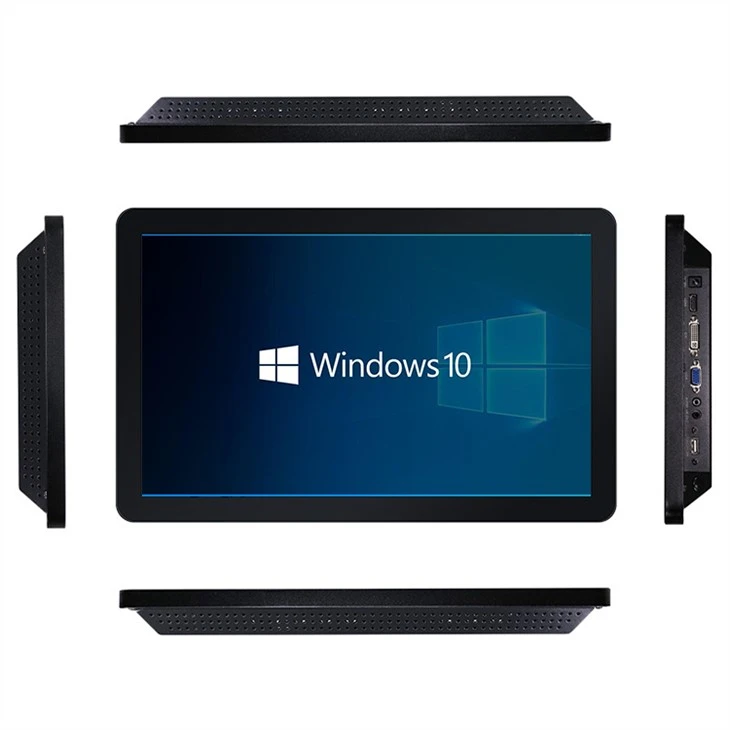
Step 2: Identify the Connectivity Port
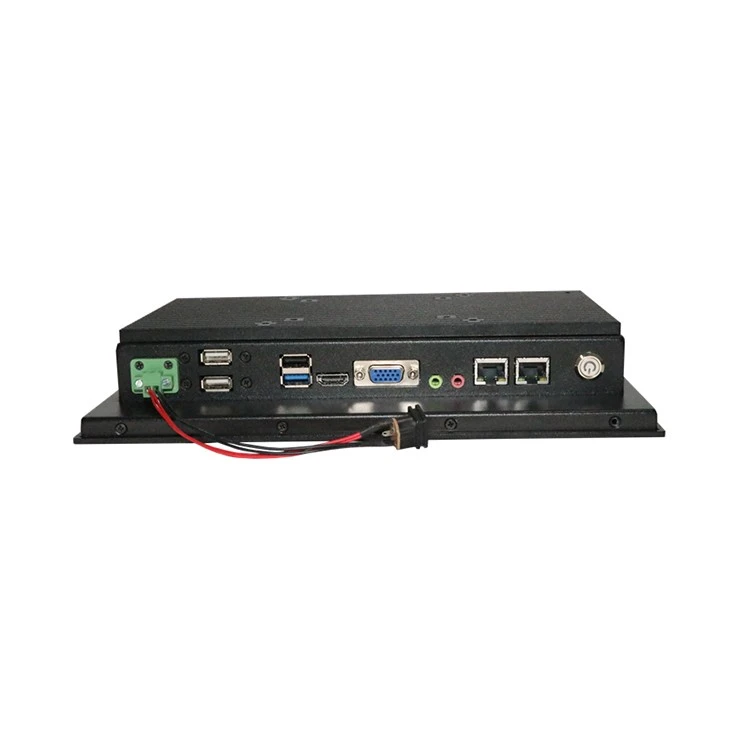
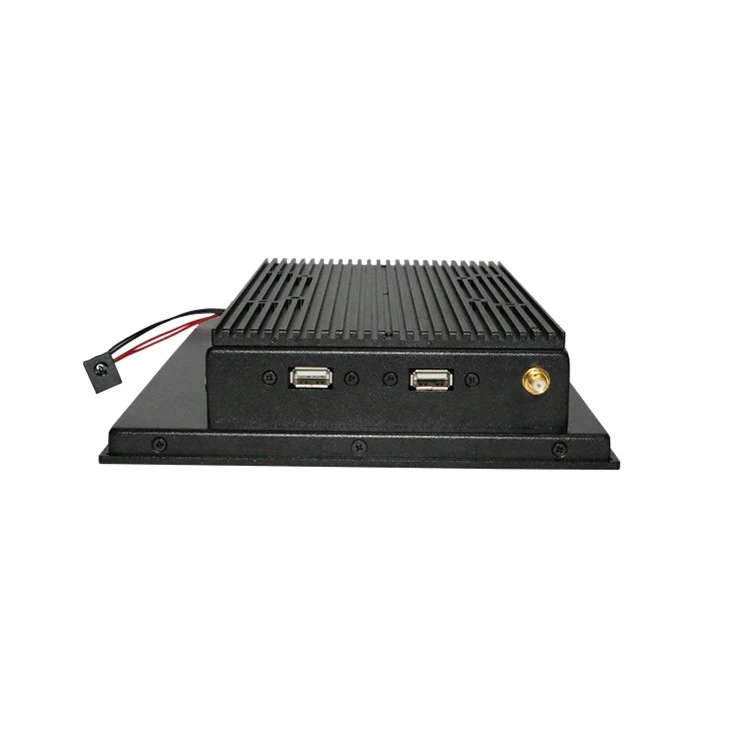
Locate the appropriate connectivity port on your 8-inch industrial touch panel PC. If you're using a USB barcode scanner, look for a USB port on your PC. If you're using a serial barcode scanner, look for a serial port (also known as a COM port).
Step 3: Connect the Scanner
Connect the barcode scanner to the appropriate port on your PC using the provided cable. If you're using a wireless barcode scanner, follow the manufacturer's instructions to pair the scanner with your PC via Bluetooth or another wireless protocol.
Step 4: Power On Your PC
Once the barcode scanner is connected, power on your 8-inch industrial touch panel PC. The PC should automatically detect the scanner and install the necessary drivers. If the drivers are not installed automatically, you may need to manually install them using the driver CD or by downloading the drivers from the scanner manufacturer's website.
Step 5: Test the Scanner
After the drivers are installed, test the barcode scanner to make sure it's working properly. Scan a barcode using the scanner and check if the scanned data appears on your PC's screen. If the data does not appear, make sure the scanner is properly connected and the drivers are installed correctly.

Configuring the Barcode Scanner
In some cases, you may need to configure the barcode scanner to work with your 8-inch industrial touch panel PC. The following are some common configuration settings that you may need to adjust:
- Scan Mode: Barcode scanners can operate in different scan modes, such as single scan, continuous scan, or trigger scan. Choose the scan mode that best suits your needs.
- Data Format: The barcode scanner can output the scanned data in different formats, such as ASCII, Unicode, or binary. Make sure the data format is compatible with your PC's software.
- Keyboard Emulation: Some barcode scanners can emulate a keyboard, which means the scanned data is sent to the PC as if it were typed on the keyboard. If you're using a barcode scanner in keyboard emulation mode, make sure the scanner is configured to use the correct keyboard layout.
Troubleshooting Common Issues
If you encounter any issues while connecting or using the barcode scanner, the following troubleshooting tips may help:
- Check the Connection: Make sure the barcode scanner is properly connected to your 8-inch industrial touch panel PC. Check the cables for any damage or loose connections.
- Update the Drivers: If the barcode scanner is not working properly, try updating the drivers to the latest version. You can download the drivers from the scanner manufacturer's website.
- Check the Configuration Settings: Make sure the barcode scanner is configured correctly. Check the scan mode, data format, and keyboard emulation settings.
- Test the Scanner on Another PC: If the barcode scanner is still not working, try testing it on another PC to see if the issue is with the scanner or your 8-inch industrial touch panel PC.
Conclusion
Connecting a barcode scanner to an 8-inch industrial touch panel PC is a relatively straightforward process that can significantly enhance the efficiency and functionality of your industrial operations. By choosing the right barcode scanner, following the proper connection steps, and configuring the scanner correctly, you can ensure a seamless integration and reliable performance.
If you're interested in purchasing an 8-inch industrial touch panel PC or need further assistance with barcode scanner integration, please don't hesitate to contact us for procurement and negotiation. We also offer a wide range of other products, such as touch monitor 15 inch, X86 Mini computer Host Control, and medical touch screen monitor.
References
- Manufacturer's documentation for the 8-inch industrial touch panel PC
- Manufacturer's documentation for the barcode scanner