

Connecting a touch monitor PC to a MIDI device can open up a world of creative possibilities in music production, live performance, and multimedia applications. As a supplier of high - quality touch monitor PCs, I'm here to guide you through the process step by step.
Understanding the Basics
Before we start the connection process, it's essential to understand what a MIDI device is and how it interacts with a touch monitor PC. MIDI, which stands for Musical Instrument Digital Interface, is a protocol that allows electronic musical instruments, computers, and other devices to communicate and synchronize. A MIDI device can be a keyboard, drum machine, synth, or any other musical equipment that supports MIDI.
On the other hand, a touch monitor PC is a powerful computing device with a touch - sensitive screen. It can run music production software, sequencers, and other applications that work with MIDI data. Connecting the two enables you to control your MIDI devices using the touchscreen interface of the PC, making music creation more intuitive and efficient.

What You'll Need
To connect your touch monitor PC to a MIDI device, you'll need the following:
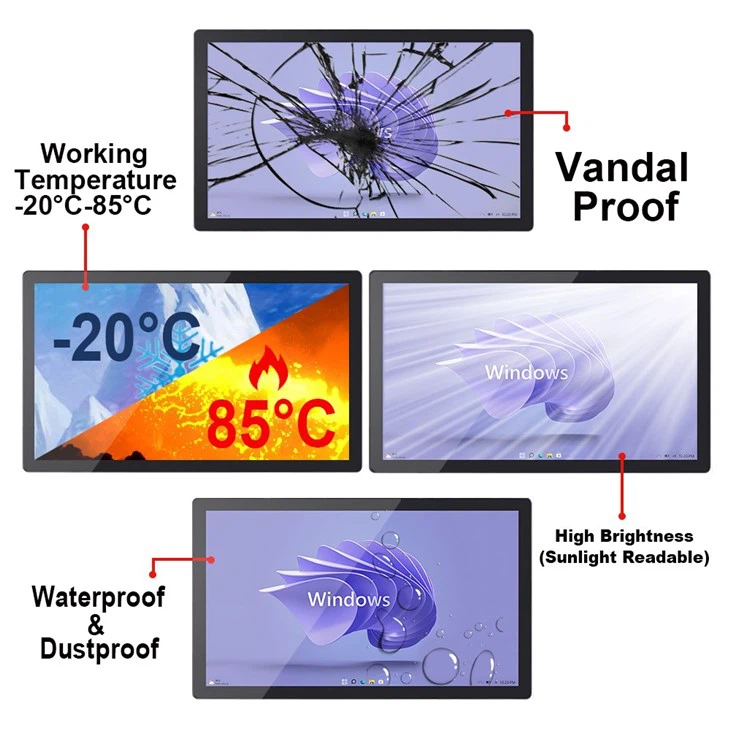
- A touch monitor PC: We offer a wide range of touch monitor PCs, such as the Waterproof IP67 Marine Rugged Touchscreen Monitor. This monitor is designed to withstand harsh marine environments while providing a smooth touch - screen experience, making it suitable for both studio and on - the - go production.
- A MIDI device: This could be a MIDI keyboard, a drum pad, or any other MIDI - enabled instrument.
- MIDI cables: Most MIDI devices use standard 5 - pin DIN MIDI cables for connection. However, some modern devices may also support USB MIDI connectivity.
- MIDI interface (optional): If your touch monitor PC doesn't have built - in MIDI ports, you'll need a MIDI interface. A MIDI interface converts MIDI signals into a format that the PC can understand.
Step - by - Step Connection Process
1. Check Your PC and MIDI Device Compatibility
Before making any physical connections, ensure that your touch monitor PC and MIDI device are compatible. Check the system requirements of your music production software and make sure your PC meets them. Also, check if your MIDI device supports the type of connection you plan to use (e.g., USB or 5 - pin DIN). Our monitor lcd touchscreen is highly compatible with most music production software and MIDI devices, thanks to its powerful hardware and flexible operating system.
2. Physical Connection
- Using 5 - pin DIN MIDI Cables: If your MIDI device and PC have 5 - pin DIN MIDI ports, connect one end of the MIDI cable to the MIDI Out port of the MIDI device and the other end to the MIDI In port of the MIDI interface (if using one). Then, connect another MIDI cable from the MIDI Out port of the interface to the MIDI In port of the PC.
- Using USB MIDI: If your MIDI device has a USB port, simply connect it directly to a USB port on your touch monitor PC. This is the most straightforward method and is commonly used with modern MIDI devices.
3. Install Drivers
After making the physical connection, you may need to install drivers for your MIDI device or MIDI interface. Most modern devices are plug - and - play, which means your PC will automatically detect them and install the necessary drivers. However, if your device doesn't work immediately, visit the manufacturer's website and download the latest drivers for your operating system.
4. Configure MIDI Settings in Your Software
Once the device is connected and the drivers are installed, open your music production software. Navigate to the MIDI settings or preferences section. Here, you can select your MIDI device as the input or output source. You may need to experiment with different settings to get the best performance.
Troubleshooting Common Issues
- No Sound or Response: If you're not getting any sound from your MIDI device when connected to the PC, first check the physical connections to make sure they are secure. Also, ensure that the volume levels on your MIDI device, PC, and audio interface are set correctly.
- Driver Problems: If your device is not recognized by the PC, try uninstalling and reinstalling the drivers. Make sure you are using the correct drivers for your operating system and device model.
- Latency Issues: Latency refers to the delay between when you press a key on your MIDI device and when the sound is produced. To reduce latency, try closing other applications running on your PC, increasing the buffer size in your audio settings, or using a dedicated audio interface.
Benefits of Connecting a Touch Monitor PC to a MIDI Device
- Enhanced Creativity: The touch - screen interface of the PC allows for more intuitive control of your MIDI devices. You can easily adjust parameters, create patterns, and mix tracks directly on the screen, making the music production process more fluid and creative.
- Portability: Our Dustproof Modular Panel Pc is lightweight and portable, making it easy to take your music production setup on the go. You can connect it to your MIDI device and create music anywhere, whether it's in a studio, on a tour bus, or at a live event.
- Versatility: A touch monitor PC can run a variety of music production software, giving you access to a wide range of virtual instruments, effects, and plugins. This allows you to create different styles of music and experiment with new sounds.
Conclusion
Connecting a touch monitor PC to a MIDI device is a relatively simple process that can greatly enhance your music production capabilities. By following the steps outlined in this guide, you'll be able to establish a stable connection and start creating amazing music in no time.
If you're interested in purchasing a high - quality touch monitor PC for your MIDI setup, feel free to contact us for further details and to discuss your specific requirements. We're committed to providing the best products and services to our customers.
References
- MIDI Association. (2023). MIDI Basics and Standards.
- Various music production software user manuals.