

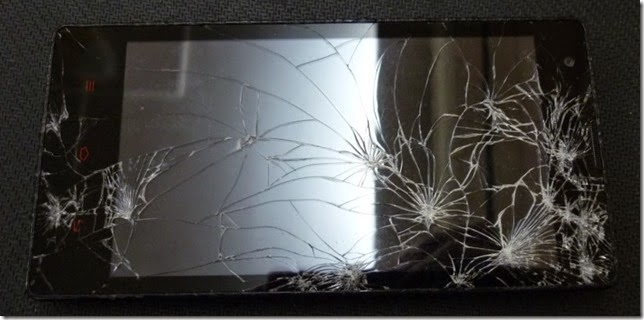
Touchscreens are part of daily life-at home, in vehicles, and in medical settings. Users often encounter common touchscreen problems, such as screens that do not respond or experience delayed touch. One frequent issue is touchscreen yellowing, where the display gradually loses its true color. Another challenge is the ghost touch issue, where the screen registers unintended touches or drifts. Outdoor touch screen sunlight readability is also a concern, as strong sunlight can make displays difficult to see. Research shows that drivers struggle with car touchscreens, especially when controls are moved to digital menus. You may also face difficulties using touchscreens with gloves or wet hands, and worry about the long-term durability of your device. Each of these problems can impact your experience and safety. Identify which common touchscreen problem you're facing and follow step-by-step solutions to resolve it.
Key Takeaways
- Clean your touchscreen often and keep it updated. This helps stop slow or unresponsive touch problems.
- Keep your screen away from sunlight and UV rays. This stops yellow spots and keeps colors bright.
- If you have ghost touch problems, clean the screen first. Take off the screen protector and update your software.
- Pick screens that are very bright and have anti-glare coatings. This makes it easier to see outside.
- Use protective gear and be gentle with your device. This helps your device last longer and stops damage.
Common Touchscreen Problems
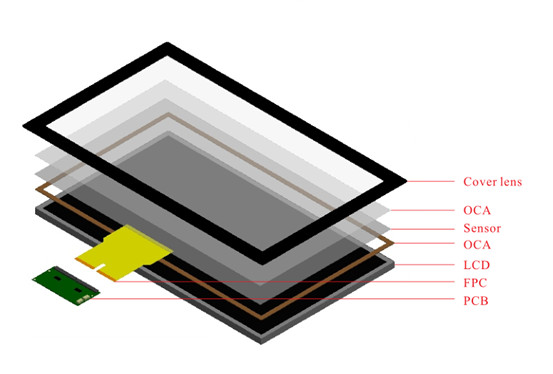
Touchscreens are important in your life. Many people have problems with them. Knowing about these problems helps you fix them fast.
Unresponsive or Delayed Touch
Sometimes, your screen does not react when you touch it. You might tap or swipe, but nothing happens. Other times, the screen is slow to respond. These problems can happen because of software bugs or broken parts. Dust and grease on the screen can also cause trouble. The screen might freeze or not notice your touch. Try restarting your device or cleaning the screen. If it still does not work, update your drivers or check for damage.
Tip: Keep your touchscreen clean and update it to stop unresponsive touch.
Touchscreen Yellowing
Touchscreen yellowing is easy to see. The screen starts to look yellow, not bright. This usually happens after using it for a long time. It can be caused by the backlight getting old or the color lamp changing. Sometimes, the screen color is not even. Colors may look strange, so it is hard to read or see pictures. Picking screens made with good materials can help stop yellowing.
Causes of touchscreen yellowing:
- Backlight getting old
- Color lamp changes
- Uneven screen color
Ghost Touch Issue
A ghost touch issue means the screen acts like you touched it, but you did not. You might see apps open or things move by themselves. This can happen from electrical problems or static electricity. Software bugs can also cause it. Older screens with self capacitance sensing have this problem more. Newer screens use mutual capacitance sensing to help stop it. Cleaning the screen and updating software can fix most ghost touch issues.
Outdoor Touch Screen Sunlight
It is hard to see your screen outside in bright sunlight. The display can look faded or too shiny. This happens if the screen is not bright enough or does not have special glass. Screens with more brightness and anti-reflective glass are easier to see outside.
Note: If you use your device outside a lot, pick screens made for outdoor touch screen sunlight readability.
Other Frequent Issues
Glove and Wet Touch
Sometimes, your touchscreen does not work with gloves or wet hands. Gloves stop the screen from feeling your finger's signals. Wet hands can make the screen think you are touching it in many places. This causes the screen to act strange or not respond well.
- Thick gloves or ones without special material make touch hard.
- Wet hands can make the screen think you touched it many times.
- Dirt or sweat on gloves or the screen makes things worse.
You can try some easy fixes:
- Use gloves made for touchscreens. These have special stuff so the screen can feel your touch.
- Change the screen's sensitivity if your device lets you.
- Clean your screen often to get rid of dirt and sweat.
- Try using a stylus or voice commands if you need to use your device with gloves.
Tip: Many jobs in factories or hospitals need screens that work with gloves or wet hands. Picking the right screen can help you work faster and with less trouble.
Durability Concerns
Touchscreens in factories, hospitals, and public places get used a lot. You want your device to last a long time, even if you use it every day. Good capacitive touchscreens can take over 200 million touches. At home, this means they last about 5 to 10 years. In factories, some touch panels last more than 10 years because they are made for all-day use.
Heat, water, and scratches can make screens wear out faster. Industrial screens have strong glass and special coatings. They also keep out water and dust. These things help them last longer in tough places.
Note: Clean your screen and use it carefully to help it last longer.
Compatibility Problems
Sometimes, your touchscreen does not work with your device's system. This can happen if the right drivers are missing or not set up right. Each system-Windows, Android, or iOS-works with touchscreens in its own way.
- Windows devices, especially old ones, may need new drivers or updates.
- Android usually works with touchscreens, but some need special drivers.
- iOS has built-in support, but bad hardware can still cause problems.
Companies need to test their screens with different systems and update drivers often. If your touchscreen does not work, look for driver updates and check if your hardware matches your system.
Tip: Always make sure your new touchscreen will work with your device before you buy it.
Causes and Solutions
Causes of Common Problems
Your touchscreen can have problems for many reasons. Here are some of the main causes:
- Dirt or dust on the screen can stop your touch from working or cause ghost touch.
- Bad screen protectors can trap air, dust, or water, making the screen less sensitive.
- Cracks in the display can make ghost touch happen and some spots not work.
- If your device gets too hot, the screen may act strange or stop working.
- Cheap chargers or cables can make your device work badly.
- Old software can have bugs that mess up touch performance.
- Bright sunlight or strong lights can make the screen yellow and hard to see.
- UV light over time can hurt the screen, causing yellowing and making it less clear.
Tip: Clean your screen often and use good accessories to stop many touchscreen problems.
Solutions for Touchscreen Yellowing
Touchscreen yellowing is when your screen looks yellow or faded. This usually happens from too much sun or strong lights. UV rays break down the screen's parts, so it looks old and less clear.
To fix or stop touchscreen yellowing:
- Use screens with anti-UV coatings or anti-UVSCA technology. These block bad rays and keep your screen looking new.
- Do not leave your device in the sun for a long time.
- Pick screens made with UV-resistant materials if you use your device outside a lot.
- Change old or yellowed screens for new ones with better protection.
| Problem | Cause | Solution |
|---|---|---|
| Touchscreen yellowing | UV exposure, aging | Anti-UV coating, avoid sunlight, replace |
Note: Devices with high brightness and contrast need extra UV protection to stop yellowing.
Fixing Ghost Touch Issue
A ghost touch issue is when your screen moves or opens things by itself. This can be annoying and hard to use.
Try these steps to fix ghost touch:
- Wipe your screen with a soft, dry cloth to get rid of dust and dirt.
- Take off the screen protector and check for air, dust, or water under it.
- Restart your device to clear small problems.
- Update your device software to the newest version.
- Do not use cheap chargers or cables.
- If your screen is cracked, think about getting a new one.
Tip: If ghost touch keeps happening, check for overheating or broken hardware.
Improving Sunlight Readability
If you use your device outside, sunlight can make the screen hard to see.
Here are ways to make outdoor touch screen sunlight readability better:
- Pick a screen with high brightness (at least 1000 nits) to beat sunlight.
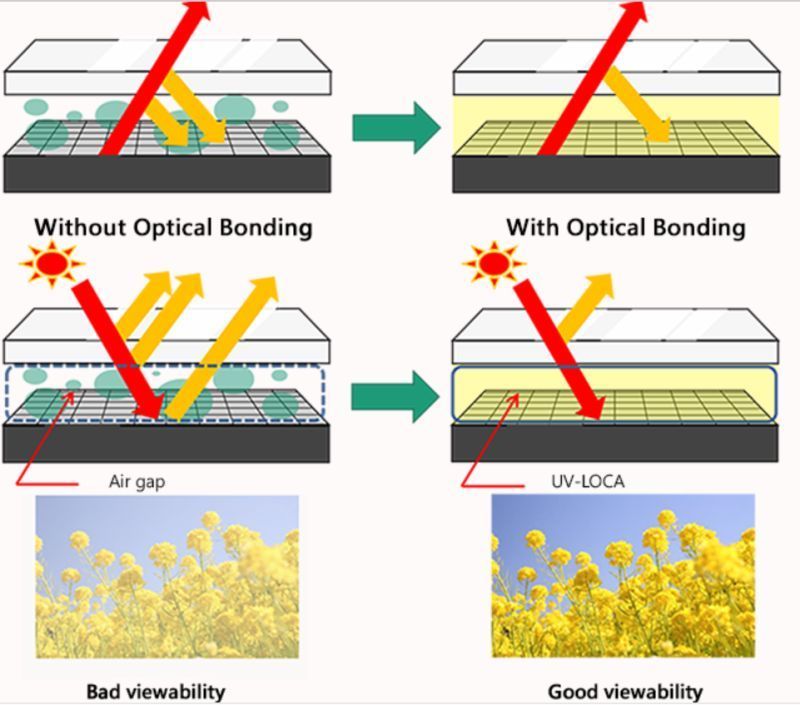
- Use optical bonding to take away air gaps and cut glare.
- Put on anti-glare or anti-reflective coatings to lower reflections.
- Choose screens with UV-resistant materials to stop yellowing.
- Get rugged screens with sealed cases to keep out dust and water.
- Use smart brightness controls that change with the light around you.
Note: Outdoor touch screen sunlight solutions help you see better and protect your device from harm.
Addressing Unresponsive Touch
If your screen does not react or is slow, try these steps:
- Restart your device to refresh it.
- Clean the screen to get rid of dirt or grease.
- Look for and install any software updates.
- Take off and put back the screen protector if you use one.
- Make sure you use the right charger and cable.
- If it still does not work, ask the manufacturer for help.
Tip: Keeping your device clean and updated helps stop unresponsive touch.
Enhancing Durability
You want your touchscreen to last, especially in tough places like factories or outside. Here are ways to make your device stronger:
- Use tempered glass to stop scratches.
- Pick screens with strong frames and good sensors.
- Choose devices with waterproof and dustproof seals.
- Look for UV-resistant coatings to stop yellowing.
- Pick screens with anti-glare and anti-fog coatings for better seeing.
- Make sure your device has a tough case to protect it from drops and hits.
| Feature | Benefit |
|---|---|
| Tempered glass | Scratch resistance |
| Waterproof seals | Keeps out water and dust |
| UV-resistant coating | Stops yellowing and fading |
| Reinforced frame | Handles bumps and pressure |
Note: Certified touchscreens meet strict rules for safety and strength.
Ensuring Compatibility
You need your touchscreen to work with your device's system. Here is how to make sure it fits:
- Test your touchscreen with your device before using it all the time.
- Make sure your device has the right connection type (like USB, I2C, or SPI).
- Use touchscreens that meet industry rules for safety and performance.
- Work with good manufacturers to get the right hardware and software help.
- Pick screens with multi-touch and gesture recognition for a better experience.
- Update drivers and software to keep everything working well.
Tip: Always check if a new touchscreen works with your device before you buy it to avoid problems.
Maintenance and Prevention
Cleaning Tips
You can keep your touchscreen working well by cleaning it right. Always turn off your device before you clean it. Use a soft microfiber cloth to wipe away fingerprints and dust. If stains do not come off, use a little distilled water or a mild cleaner for touchscreens. Never use paper towels or rough things because they can scratch the screen. Do not use harsh chemicals like ammonia unless your device's manual says it is okay. Clean the edges and corners because dirt hides there. Wash your hands before using the touchscreen to stop oil and dirt from building up.
Recommended Cleaning Steps:
- Turn off your device.
- Use a soft, lint-free cloth.
- Avoid harsh chemicals.
- Clean edges and corners.
- Dry the screen after cleaning.
Tip: Follow your device's cleaning instructions to keep your warranty safe and your touchscreen in good shape.
Protective Accessories
Protective accessories help your touchscreen last longer. You can use tempered glass or plastic film screen protectors. These stop scratches, dirt, and damage but keep the screen clear. Stylus pens help you avoid smudges and give you better control. Cases and sleeves protect your device and accessories from drops and bumps. Maintenance kits with cleaning cloths and sprays help keep everything clean.
Popular Accessories:
- Tempered glass screen protectors
- Stylus pens
- Protective cases or sleeves
- Cleaning kits with anti-static sprays
Note: Using these accessories lowers the chance of damage and keeps your touchscreen working well.
Software Updates
Software updates help your touchscreen work better. Check for updates often. Updates fix bugs and make touch more accurate. They also help your device work with new apps and systems. Always follow the update steps from your device maker. If you skip updates, your touchscreen might get slow or not work right.
| Benefit of Updates | What You Gain |
|---|---|
| Bug fixes | Fewer errors |
| Improved accuracy | Better touch response |
| New features | More options and functions |
| Security patches | Safer device |
Tip: Set your device to update by itself so you do not miss important changes.
Preventive Measures
You can stop most touchscreen problems with easy steps. Clean your screen often with a soft cloth. Use gentle pressure when you touch the screen. Keep your device away from heat, water, and sunlight. Put your touchscreen in a safe place, away from places where it could get hit or dropped. Calibrate your screen every few months to keep it working right. Use screen protectors and cases to stop scratches and bumps. Keep your system updated for the best performance.
Preventive Checklist:
- Clean your screen often.
- Use protective accessories.
- Handle your device gently.
- Avoid extreme temperatures.
- Update software and calibrate regularly.
Remember: Taking care of your device and making smart choices helps your touchscreen last longer and work better every day.
You can solve common touchscreen problems by following simple steps. Clean your screen often and update your software. Replace old parts to fix touchscreen yellowing. Wipe away dust to stop a ghost touch issue. Choose screens with high brightness for outdoor touch screen sunlight. Regular care helps your device work better and last longer.
Take action today. Keep your touchscreen in top condition and enjoy a smooth experience every day.
FAQ
Why does my touchscreen turn yellow in sunlight?
Sunlight and UV rays can hurt your screen. Over time, the display turns yellow. You can help your device by using anti-UV coatings. Try to keep your device out of direct sunlight.
Tip: Pick screens that resist UV rays for outdoor use.
Can I use my touchscreen with gloves?
Special gloves made for touchscreens let you use the screen. Regular gloves block the signal and do not work. Some devices have a "glove mode" to help you use the screen with gloves.
| Glove Type | Works with Touchscreen? |
|---|---|
| Regular Gloves | ❌ |
| Touchscreen Gloves | ✅ |
How waterproof is a capacitive touch panel?
A waterproof capacitive touch panel can handle rain and splashes. Check the IP rating to know how safe it is. Higher numbers mean better protection from water and dust. IP65 or higher keeps your device safe outside.
Note: Always look at the IP rating before using your device outdoors.
What is the difference between industrial and consumer touchscreens?
Industrial touchscreens last longer and are harder to break. You see them in places like factories and hospitals. Consumer touchscreens work well at home or in offices but are not as tough.
- Industrial: Strong glass, waterproof, bright screen
- Consumer: Regular glass, less protection